-
How to sign in through the browser
-
Go to office.com
-
Click "Sign in" at the top right
-
Type in your MS365 email address/username (...@directonlineservices.com/...@worktop-express.de)
-
If Microsoft asks whether the account is "Home" or "Work or school", choose the latter.
-
You might have to prove it's you using the Microsoft Authenticator app on your phone. If this is the first time you're logging in then Microsoft will ask you to set it up.
-
If you're having any issues, please contact IT Support
-
How to download MS Office for desktop (which includes MS Teams for desktop)
-
If you have admin rights on your machine:
-
Go to office.com and sign in.
-
Expand the "Install office" dropdown menu at the top right
-
Select the top "Premium Office apps" option
-
Follow on-screen instructions
-
If you don't have admin rights or have any issues, please contact IT Support
-
How to download MS Teams separately
-
MS Teams documentation from Microsoft
-
For users coming from the TeamZeusApp
-
There are some differences worth pointing out:
- On TZ, you have groups -> threads (either within a group or separate) -> messages. On MS Teams, you have either Teams -> channels -> conversations -> messages, or you have private one to one/group chats -> messages.
- On TZ on a group thread, you can add users outside of the group. On MS Teams in team channels, you can only have members of the team. There is however an update being prepared by Microsoft to alter this limitation.
- Groups on TZ essentially have the same purpose as teams on MS Teams. They are either actual departments or groups of people communicating about a certain topic.
- TZ is an isolated messaging platform with its own calendar. Whereas MS Teams is fully integrated with MS365 and its services. So in MS Teams you can have access to SharePoint sites, your Outlook calendar, audio and video meetings and so on.
-
Periscope -> distribution group -> shared mailbox -> Power Automate -> SharePoint -> Teams
-
There is a separate team for each set of dashboards (mirroring the old TZ setup)
-
Periscope sends an email to a distribution group, which then forwards the email to periscope.reports@directonlineservices.com which is a shared mailbox, where a rule is set up to move relevant emails to their appropriate folder
-
Power Automate picks it up in the mailbox and saves the dashboard.png attachment to the relevant SharePoint site based on the "TO:" address.
-
Power Automate then creates a message in the relevant channel on MS Teams
-
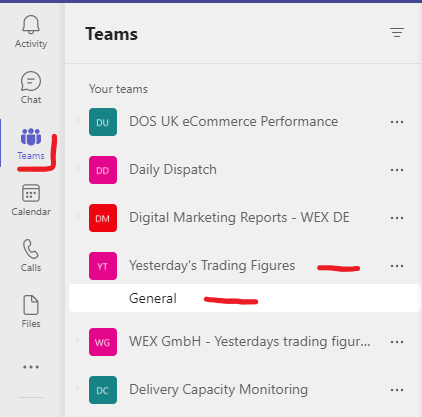
Find and open the "General" channel in the relevant Team, like for example "Yesterday's Trading Figures"
-
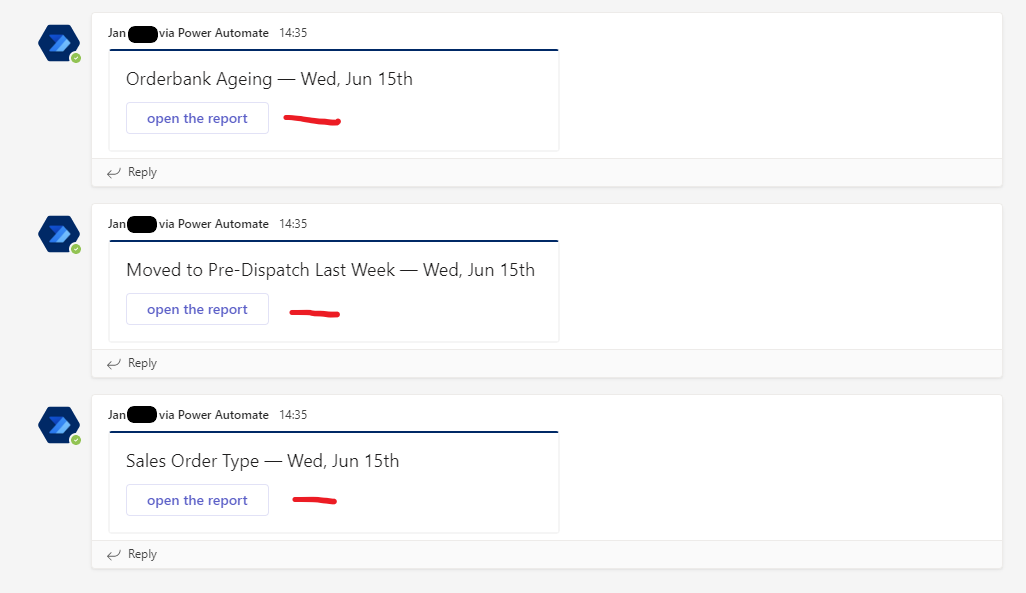
Click "open the report" to open each report. It will be automatically opened in a new browser tab to allow you to zoom in. Each "message" says "Jan ... via Power Automate", because Jan owns the Power Automate flow creating these messages automatically in the background.
-
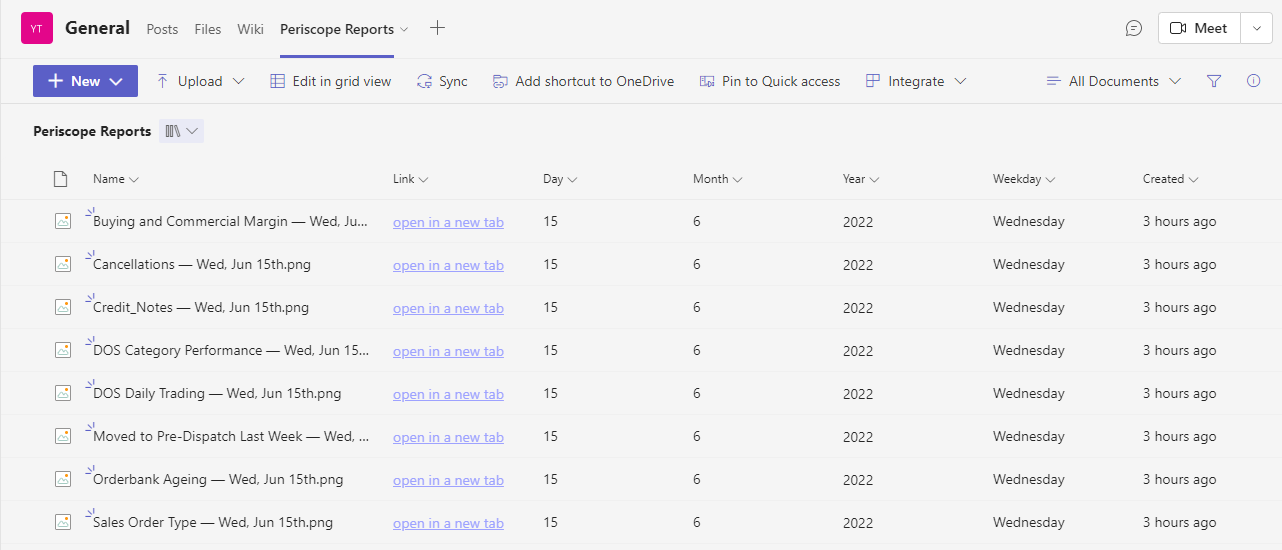
Alternatively, if you'd like to open a report from a specific date, you can go to the "Periscope Reports" tab, which opens the SharePoint storage and allows you to filter and sort all the reports by day, month, year... After finding the right report I recommend clicking the "open in a new tab" as that will allow you to zoom in on the report.
-
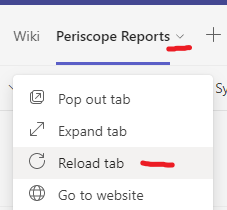
If the "Periscope Reports" tab doesn't open properly, you can click the tab again and select "Reload tab", which should help.