-
How to sign in through the browser
-
Go to office.com
-
Click "Sign in" at the top right
-
Type in your MS365 email address/username (...@directonlineservices.com/...@worktop-express.de)
-
If Microsoft asks whether the account is "Home" or "Work or school", choose the latter.
-
You might have to prove it's you using the Microsoft Authenticator app on your phone. If this is the first time you're logging in then Microsoft will ask you to set it up.
-
If you're having any issues, please contact IT Support
-
How to download MS Office for desktop (which includes MS Teams for desktop)
-
If you have admin rights on your machine:
-
Go to office.com and sign in.
-
Expand the "Install office" dropdown menu at the top right
-
Select the top "Premium Office apps" option
-
Follow on-screen instructions
-
If you don't have admin rights or have any issues, please contact IT Support
-
How to download MS Teams separately
-
MS Teams documentation from Microsoft
-
For users coming from the TeamZeusApp
-
There are some differences worth pointing out:
- On TZ, you have groups -> threads (either within a group or separate) -> messages. On MS Teams, you have either Teams -> channels -> conversations -> messages, or you have private one to one/group chats -> messages.
- On TZ on a group thread, you can add users outside of the group. On MS Teams in team channels, you can only have members of the team. There is however an update being prepared by Microsoft to alter this limitation.
- Groups on TZ essentially have the same purpose as teams on MS Teams. They are either actual departments or groups of people communicating about a certain topic.
- TZ is an isolated messaging platform with its own calendar. Whereas MS Teams is fully integrated with MS365 and its services. So in MS Teams you can have access to SharePoint sites, your Outlook calendar, audio and video meetings and so on.
-
Via the channel
-
Go to the "Direct Online Services" team.
-
Open the channel "Staff Meetings"
-
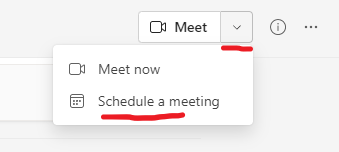
Click on the arrow button next to the "Meet" button in the top right and click "Schedule a meeting"
-
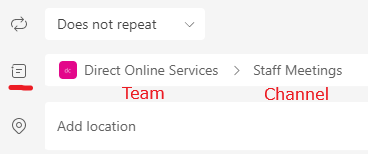
This will pre-fill the "Channel" attribute of the meeting, which determines whether the meeting takes place in its own 'chat' (on the Chat tab) or within an existing Team and channel. It also allows team members to join without inviting them one by one.
-
Via the calendar
-
Go to the MS Teams calendar
-
Start creating a meeting
-
Click into the "Add channel" box, find the "Direct Online Services" team and select the "Staff meetings" channel.
-
By doing the above you do not need to invite every single user one by one as the meeting invites all the members of the "Direct Online Services" team, which automatically includes every single DOS MS365 user. ()
-
You can add a meeting room in the location field as well if needs be to book it (as long as it is free at the selected time)
-
After scheduling the meeting, users will get a normal Outlook invite. A specific setting had to be enabled on the "Direct Online Services" team to enable automatic Outlook meeting invites -> contact IT if you would like this enabled in your Team.
-
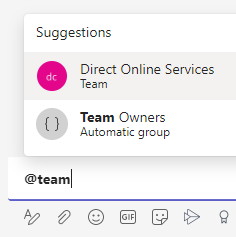
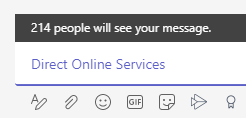
You can also mention the whole DOS in the 'reply' underneath the meeting 'message' by typing @team and selecting "Direct Online Services", which will notify every DOS MS365 user about the meeting.
-
You can record the meeting either automatically or manually:
-
Automatically at the start by enabling "Record automatically" in the "Meeting options" menu after scheduling the meeting. You can find this menu in the top bar after opening the meeting details before the meeting starts.
-
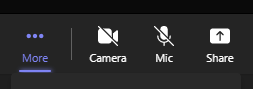
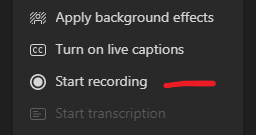
Manually after starting the meeting in the three-dot 'More' menu at the top.
-
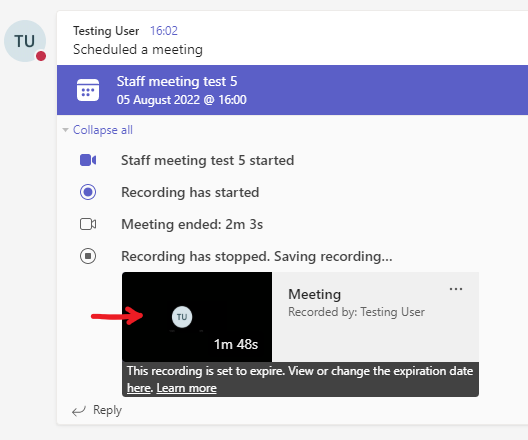
The meeting recording is then saved on the team's SharePoint site with a link shared in the Staff Meeting channel. And you can play it by simply clicking on the meeting picture.
-
Please note that Microsoft automatically sets the recording to expire after 120 days but this setting can be both globally and individually changed.
-
In MS Teams, the organiser of the meeting can mute other attendees during the meeting:
-
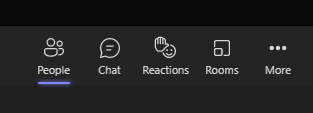
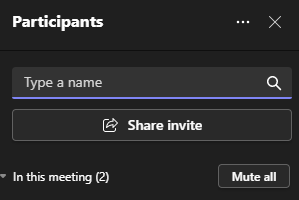
Click on 'People' to reveal all the attendees. Then you have two options.
-
Click "Mute all" to mute everyone apart from yourself.
-
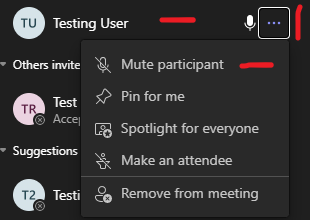
Find the user on the list, click the three-dot menu and "Mute participant"